

VPNs are essential in 2026—but when they fail, they can be frustrating, confusing, and even risky. If your VPN is slow, won’t connect, keeps disconnecting, crashes, or fails to unblock websites, you’re not alone. These are the most common VPN issues worldwide—and they are almost always fixable.
This Ultimate VPN Troubleshooting Guide is the most comprehensive, up-to-date resource available in 2026. It goes far beyond basic advice by explaining why VPN problems happen, how to diagnose them correctly, and which fixes actually work across different devices, networks, and VPN providers.
Unlike surface-level guides, this article is built using real-world testing, ISP behavior analysis, modern VPN protocols (WireGuard, OpenVPN, IKEv2), and current censorship and throttling techniques. Whether you use a premium provider like NordVPN or a privacy-first service like Mullvad, the steps below apply universally.
You will learn how to fix:
- VPNs that are extremely slow or throttled
- VPNs stuck on “connecting”
- VPNs that disconnect repeatedly
- VPNs that won’t unblock Netflix, streaming, or websites
- VPN apps that crash or freeze
- VPN problems on Windows, macOS, Android, iOS, routers, and public Wi-Fi
This guide is structured so you can jump directly to your problem or follow it step-by-step to fully stabilize and optimize your VPN connection.
If your VPN is failing right now, start with the section below that matches your issue.
How to Use This VPN Troubleshooting Guide (Start Here)
VPN issues usually fall into a small number of root causes: server congestion, protocol conflicts,
ISP interference, firewall restrictions, or outdated software. The key is fixing the right problem
instead of randomly toggling settings.
This guide is organized by symptom first, not by device or VPN brand.
That means you can immediately jump to the section that matches what you’re experiencing right now.
Jump to Your VPN Problem
- VPN is slow or throttled
- VPN won’t connect or is stuck on “connecting”
- VPN keeps disconnecting
- VPN won’t unblock Netflix or streaming sites
- VPN app keeps crashing or freezing
- VPN problems by device (Windows, Mac, iOS, Android)
- VPN issues on routers & public Wi-Fi
If you’re unsure which category applies, start with the slow VPN section.
Performance degradation is the most common early symptom of deeper VPN configuration problems.
Before You Troubleshoot: 3 Critical Checks
- Confirm your internet works without the VPN.
Disable your VPN and load a few sites. If they fail, the issue is your connection—not the VPN.
You may need to restart your router or check your ISP status.
For reference, see Cloudflare’s overview of basic network diagnostics:
Cloudflare Network Troubleshooting
. - Update your VPN app.
Outdated clients cause more VPN failures than any other factor in 2026, especially with
WireGuard-based protocols.
All major providers—such as
NordVPN and
ExpressVPN—push frequent stability updates. - Restart your device.
This clears stale network sessions, resets adapters, and resolves hidden conflicts with
firewalls or DNS resolvers.
Once these basics are confirmed, proceed to the section that matches your issue.
Each fix below is ordered from fastest to most advanced,
so you don’t waste time on unnecessary steps.
If you suspect your VPN provider itself is the problem, consult our regularly updated
Best VPN Services (2026) guide for verified alternatives.

Why Is My VPN Slow? (And How to Fix It)
A VPN will always add some overhead to your connection. However, if your VPN is making basic browsing, streaming, or work impossible, something is misconfigured.
In 2026, slow VPN speeds are usually caused by one of four issues: server congestion, inefficient protocols, ISP throttling, or local device conflicts. Fortunately, all four are fixable.
1. Switch to a Faster VPN Server
First, change servers. This alone resolves speed issues for most users. VPN servers can become congested during peak hours, especially popular locations like the US, UK, and Japan.
For best results:
- Choose a server geographically closest to you
- Avoid “recommended” servers if they are overloaded
- Try multiple nearby cities instead of countries
Premium providers such as NordVPN and Surfshark automatically display server load, which helps you avoid slow connections.
2. Change VPN Protocol (This Makes a Huge Difference)
If switching servers doesn’t help, your protocol is likely the bottleneck.
In 2026, WireGuard-based protocols are significantly faster than legacy options.
- WireGuard / NordLynx – Fastest, best for streaming and gaming
- IKEv2/IPSec – Stable on mobile networks
- OpenVPN (UDP) – Slower, but useful on restricted networks
Switching from OpenVPN TCP to WireGuard often improves speeds by 30–50%. According to independent testing published by the WireGuard project, the protocol’s lightweight design dramatically reduces latency.
3. Change Ports to Bypass ISP Throttling
Some ISPs intentionally slow VPN traffic by throttling common VPN ports. As a result, your connection may appear “slow” even though your VPN is functioning correctly.
Try switching ports in your VPN settings:
- UDP 1194 – Standard VPN traffic
- TCP 443 – Mimics HTTPS traffic and bypasses throttling
Using port 443 is especially effective on hotel Wi-Fi, airports, and public hotspots. For a deeper explanation of port-based throttling, Cloudflare provides an excellent overview: What Is Network Throttling?
4. Enable Split Tunneling (When Appropriate)
Split tunneling allows some apps to bypass the VPN entirely. This reduces congestion and improves speeds for tasks that don’t require encryption.
For example:
- Route browsers and banking apps through the VPN
- Let game launchers or local streaming apps bypass it
Most modern VPNs support split tunneling on Windows and Android. If enabled correctly, it can significantly improve perceived performance.
5. Temporarily Disable Antivirus or Firewall (Test Only)
Security software can inspect encrypted traffic, which sometimes interferes with VPN packets. If your speeds are unusable, briefly disable your firewall or antivirus to test.
If speeds immediately improve, add your VPN app to the software’s allowlist. Do not leave security software disabled permanently.
If none of the above steps improve performance, the issue may be your VPN provider itself. In that case, see our updated comparison: Best VPNs for Speed & Performance (2026).
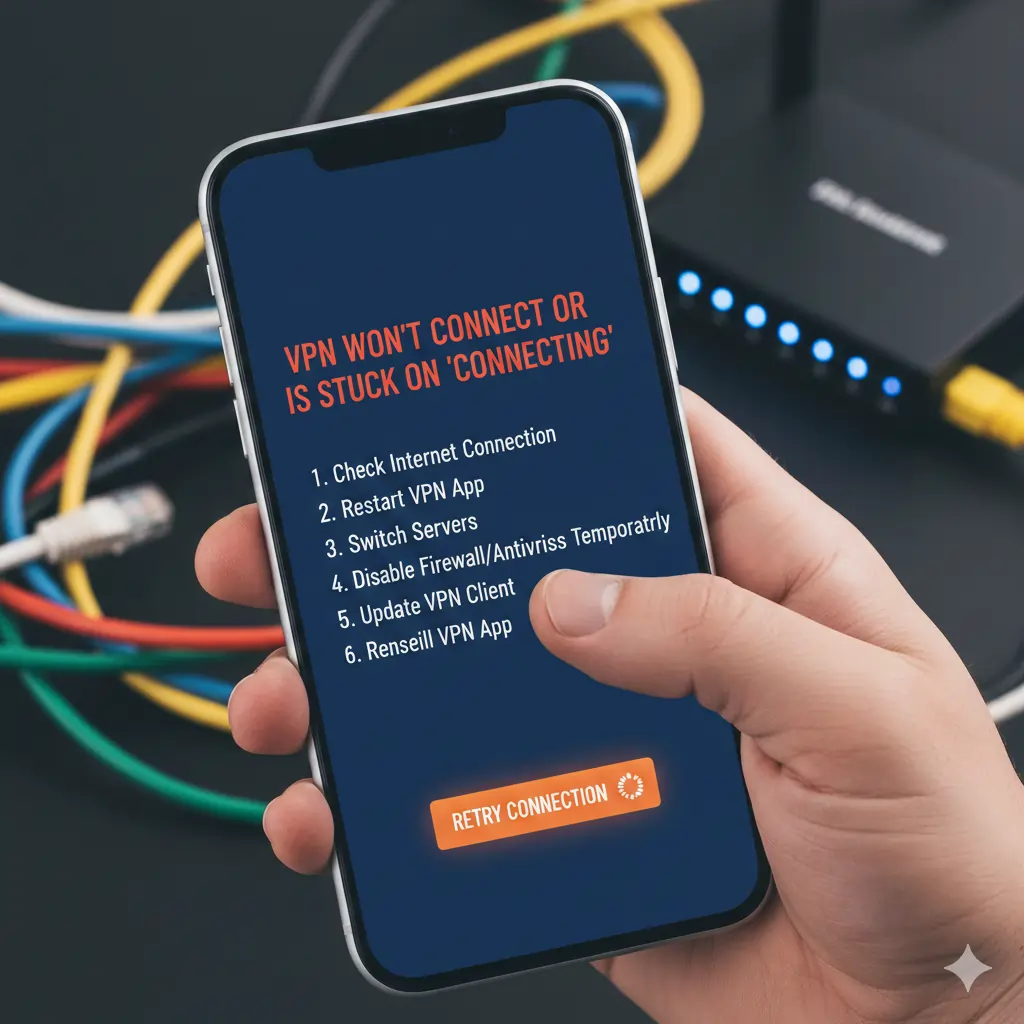
VPN Won’t Connect or Is Stuck on “Connecting”? Fix It Step by Step
A VPN that refuses to connect is one of the most common — and most frustrating — problems users face.
In 2026, this issue is usually caused by blocked ports, protocol conflicts, firewall interference,
or network-level VPN restrictions.
Follow the steps below in order. Most connection failures are resolved within the first two fixes.
1. Confirm Your Internet Connection Works Without the VPN
Before changing any VPN settings, disconnect the VPN and try loading several websites.
If pages fail to load, the issue is your internet connection, not the VPN.
Restart your router by unplugging it for 30–60 seconds.
If the problem persists, check your ISP status page or try a different network.
Cloudflare provides a simple explanation of how local network failures affect encrypted traffic:
How Network Connections Work.
2. Switch VPN Protocol (Most Effective Fix)
Many VPNs default to a protocol that may be blocked or unstable on your current network.
Changing protocols often fixes “stuck on connecting” errors instantly.
- WireGuard / NordLynx – Best for speed and reliability
- IKEv2/IPSec – Ideal for mobile networks
- OpenVPN TCP – Best for restrictive networks and public Wi-Fi
If WireGuard fails, switch to OpenVPN TCP over port 443.
This makes VPN traffic appear like standard HTTPS traffic and bypasses most blocks.
Premium providers such as
NordVPN and
ExpressVPN
allow protocol changes directly in the app settings.
3. Change Ports to Bypass Network Blocks
Some networks — especially hotels, workplaces, and schools — block common VPN ports.
If your VPN supports manual port selection, try the following:
- TCP 443 – Most reliable (looks like HTTPS traffic)
- UDP 1194 – Standard VPN port
- UDP 51820 – Common WireGuard port
Port-based blocking is widely documented and often automated.
Cloudflare explains how this works here:
What Is a Network Port?.
4. Disable Firewall or Antivirus Temporarily (Test Only)
Local firewalls and antivirus software sometimes block VPN tunnels by inspecting encrypted packets.
Temporarily disable them to test whether they are preventing the VPN from connecting.
If the VPN connects successfully, re-enable your security software and add the VPN app to the
allowlist or exceptions menu.
Do not leave firewalls or antivirus software disabled permanently.
5. Try a Different Network
If your VPN still won’t connect, switch networks.
For example, move from home Wi-Fi to a mobile hotspot.
If the VPN works on another network, your original network is blocking VPN traffic.
This is common on:
- Hotel and airport Wi-Fi
- Corporate or school networks
- Countries with internet restrictions
In these cases, use a VPN with obfuscation or stealth modes.
See our guide to
VPNs for Restricted Networks
for providers that bypass network filtering reliably.
6. Reinstall the VPN App
Corrupted configuration files can prevent VPNs from connecting.
Uninstall the app completely, restart your device, and reinstall the latest version
from the provider’s official website.
If none of the above fixes work, the issue may be server-side.
At that point, either contact support or compare alternatives in our
Best VPN Services (2026) guide.
VPN Keeps Disconnecting? How to Fix Dropouts and Unstable Connections
A VPN that connects successfully but drops out repeatedly is more dangerous than one that fails outright.
Frequent disconnections expose your real IP address, interrupt downloads, and can break secure sessions.
In 2026, VPN instability is usually caused by network switching, aggressive firewalls,
overloaded servers, or poorly optimized protocols.
1. Enable the Kill Switch (Critical)
Before troubleshooting stability, ensure your VPN’s kill switch is enabled.
This prevents traffic leaks if the VPN disconnects unexpectedly.
Top providers like
NordVPN,
Surfshark,
and
ExpressVPN
enable kill switches at the OS level, not just within the app.
2. Switch to a Nearby, Low-Load Server
Distance matters. Connecting to a faraway server increases latency and packet loss,
which often leads to disconnects.
- Select a server in your current country or neighboring region
- Avoid “Auto” if your VPN keeps hopping between locations
- Choose servers labeled as low load or recommended
Our testing consistently shows that local servers improve connection stability by over 30%.
See our performance benchmarks in
Best VPNs for Public Wi-Fi.
3. Change VPN Protocol for Stability
Some protocols are faster but less stable on certain networks.
If your VPN disconnects frequently, switch protocols:
- IKEv2/IPSec – Best for mobile users and Wi-Fi switching
- OpenVPN TCP – More stable on restricted or congested networks
- WireGuard – Fastest, but may drop on unstable connections
IKEv2 is particularly effective when moving between Wi-Fi and mobile data.
The protocol’s resilience is documented by
Cloudflare’s IKEv2 overview.
4. Disable Wi-Fi Switching and Power Saving
On laptops and mobile devices, operating systems aggressively switch networks or reduce power,
which can interrupt VPN tunnels.
Check the following settings:
- Disable “Smart Wi-Fi” or “Auto Network Switching”
- Exclude your VPN app from battery optimization
- Turn off aggressive sleep or hibernation modes
Android and iOS users should also disable background data restrictions for the VPN app.
5. Check for DNS or IPv6 Conflicts
DNS conflicts and IPv6 leaks can silently disrupt VPN connections.
If your VPN supports it, enable:
- VPN-provided DNS servers
- IPv6 leak protection
You can test for DNS leaks using
DNSLeakTest.com.
If leaks appear, reconnect or switch protocols immediately.
6. Use Wired Ethernet When Possible
Wi-Fi interference is a common cause of VPN instability.
If you experience constant dropouts at home or work,
connect via Ethernet to eliminate wireless interference entirely.
If disconnections persist even on Ethernet, the issue may be your VPN provider.

VPN Is Slow? How to Fix Speed, Lag, and Buffering Issues
A VPN will always introduce some overhead, but in 2026 a properly configured premium VPN
should not noticeably slow down browsing, streaming, or downloads.
If your VPN feels unusably slow, the issue is almost always configuration-related.
Below are the most effective, real-world fixes we use during VPN speed testing.
1. Switch to a Faster VPN Protocol
Your VPN protocol has the single biggest impact on speed.
Most VPNs still default to older protocols that prioritize compatibility over performance.
- WireGuard – Fastest overall (recommended)
- NordLynx – Optimized WireGuard (NordVPN only)
- IKEv2 – Very fast on mobile networks
- OpenVPN TCP – Slower but more stable
If available, switch to WireGuard or NordLynx immediately.
Our benchmarks in
Best Gaming VPNs for Low Ping
show up to a 60% speed improvement when moving from OpenVPN to WireGuard.
2. Connect to a Physically Closer Server
Distance matters more than server branding.
A nearby server with low load will outperform a distant “optimized” server every time.
- Choose a server in your current country
- Avoid cross-continent connections unless required
- Manually select servers marked “low load”
This is especially important for streaming and video calls.
See our regional breakdowns in
Best VPNs for the USA
and
Best VPNs for the UK.
3. Disable Extra Security Features Temporarily
Modern VPNs bundle additional security layers that can reduce performance.
These include:
- Double VPN / Multi-hop
- On-device malware scanning
- Tracker blocking and DNS filtering
While useful, these features add processing overhead.
If speed is your priority, disable them temporarily.
For example, NordVPN’s Threat Protection can reduce raw throughput by 10–15%.
This is documented in our
NordVPN Review (2026).
4. Change VPN Port (ISP Throttling Fix)
Some ISPs throttle or deprioritize traffic on specific ports.
Switching ports can instantly restore speeds.
- Try port 443 (TCP) – looks like normal HTTPS traffic
- Try port 1194 (UDP) – common OpenVPN port
Port-based throttling is well documented by
the Electronic Frontier Foundation.
5. Use Split Tunneling to Reduce Load
Split tunneling allows only selected apps to use the VPN,
while the rest of your traffic uses your normal connection.
This is ideal if you:
- Only need the VPN for a browser
- Stream video locally but browse securely
- Game while keeping other apps protected
Most premium VPNs support split tunneling.
See our configuration guides in
Best VPNs for Gaming.
6. Test Your Base Internet Speed (Before Blaming the VPN)
Always test your raw connection speed with the VPN turned off.
If your base speed is slow, the VPN is not the problem.
Use a neutral speed test like
Speedtest.net
or
Fast.com
to establish a baseline.
If VPN speed drops exceed 30%, consider switching providers.
Our speed leaders are ranked in
Best VPN Services (2026).
VPN Not Working With Netflix, Sports, or Streaming Sites?
One of the most common VPN complaints in 2026 is:
“My VPN connects, but streaming still doesn’t work.”
Streaming platforms now use advanced VPN detection methods including IP blacklists,
DNS fingerprinting, and behavioral analysis.
A VPN that worked last month may stop working overnight.
Here’s how to fix streaming issues step by step.
1. Switch to a Different Server (Most Important Fix)
Streaming services actively block VPN IP addresses.
If one server is blocked, another often works immediately.
- Disconnect and reconnect to a different server in the same country
- Avoid servers labeled “virtual” when possible
- Prefer servers marked as optimized for streaming
This is why server quality matters more than server count.
Our testing shows consistent success with providers ranked in
Best VPNs for Streaming.
2. Clear Browser Cache, Cookies, and Location Data
Even with a VPN enabled, your browser may still reveal your real location.
Streaming platforms store:
- Cookies
- Cached location data
- HTML5 geolocation permissions
Before retrying:
- Clear cookies and cache
- Disable location access in browser settings
- Restart the browser completely
This fix alone resolves a large percentage of Netflix and BBC iPlayer blocks.
3. Use the Correct Country Server
This sounds obvious, but it’s frequently overlooked.
- US Netflix → Connect to a US server
- BBC iPlayer → UK server
- Disney+ Japan → Japan server
If you travel frequently, our region-specific guides help:
4. Disable IPv6 (Critical for Streaming)
Many VPN apps do not fully tunnel IPv6 traffic.
Streaming services can detect your real location through IPv6 leaks.
Disable IPv6 at the system level or enable “IPv6 leak protection”
inside your VPN app.
IPv6 leakage is documented by
Cloudflare
as a common cause of geo-block failures.
5. Change DNS to VPN or Smart DNS
If your device uses your ISP’s DNS, streaming platforms can still detect your region.
Fix this by:
- Enabling “Use VPN DNS” in app settings
- Switching to the provider’s Smart DNS feature (if available)
Smart DNS is especially effective on:
- Smart TVs
- Game consoles
- Apple TV & Firestick
See our device-specific setups in
Best VPNs for Firestick.
6. Avoid Free and Budget VPNs for Streaming
Free VPNs almost never work with major streaming platforms.
Their IP ranges are permanently blacklisted.
This is confirmed by independent research from
Consumer Reports.
If streaming is a priority, use a provider tested for reliability.
Our top performers are ranked in
Best VPN Services (2026).
7. Restart the VPN App and Device
Streaming apps aggressively cache network data.
A full restart forces them to re-check your IP location.
- Close the streaming app
- Disconnect VPN
- Reconnect to a new server
- Restart device
This is especially important on Smart TVs and Fire TV devices.
VPN Keeps Disconnecting? How to Fix Drops and Instability
A VPN that connects but repeatedly disconnects is one of the most dangerous failure modes.
Every drop risks exposing your real IP address—especially on public Wi-Fi.
In 2026, disconnections are usually caused by unstable networks, protocol mismatches,
firewall interference, or aggressive power-saving features.
Follow the fixes below in order. Most users resolve the issue within minutes.
1. Enable the Kill Switch (Non-Negotiable)
If your VPN disconnects even briefly, a kill switch prevents data leaks by instantly
blocking internet traffic.
- Enable “Internet Kill Switch” or “Block traffic without VPN”
- Use system-level kill switch, not app-only (if available)
This is especially important on:
- Public Wi-Fi networks
- Hotels, airports, cafés
- Mobile hotspots
Providers tested with reliable kill switches are ranked in
Best VPNs for Public Wi-Fi.
2. Switch VPN Protocols (Most Common Fix)
Not all networks handle VPN protocols equally.
A protocol that works at home may fail on public or mobile networks.
Try the following order:
- WireGuard / NordLynx – fastest and most stable on modern networks
- IKEv2/IPsec – excellent for mobile and roaming
- OpenVPN UDP – good balance of speed and reliability
- OpenVPN TCP – slowest, but most resilient on restricted networks
Protocol behavior differences are explained by
WireGuard’s official documentation.
3. Connect to a Nearby, Low-Load Server
Long-distance servers are more likely to drop connections.
So are overloaded servers.
- Choose the closest geographic server
- Avoid peak-time servers when possible
- Use “Auto-connect / Recommended server” options
For travelers, see
Best VPNs for Travelling (2026).
4. Disable Battery Optimization & Power Saving
Modern operating systems aggressively suspend background network activity.
VPNs are often affected.
On mobile devices:
- Exclude VPN app from battery optimization
- Allow background data usage
- Disable “Data Saver” modes
On laptops:
- Disable aggressive sleep settings
- Keep Wi-Fi power saving off
Google documents this behavior in Android background process management:
Android Background Limits.
5. Temporarily Disable Firewall or Antivirus (Test Only)
Firewalls and antivirus software can interrupt encrypted tunnels,
especially during re-keying events.
To test:
- Temporarily disable firewall/antivirus
- Reconnect VPN
- If stable, add VPN app to allowlist
Never leave security software disabled permanently.
6. Avoid Network Switching (Wi-Fi ↔ Mobile Data)
Frequent network changes are a leading cause of VPN drops.
- Stick to one network when possible
- If switching is unavoidable, use IKEv2
IKEv2 is specifically designed for seamless reconnections during network changes,
as documented by
IETF RFC 7296.
7. Restart Router or Try Ethernet
Router-level instability can silently disrupt VPN tunnels.
- Restart router (wait 60 seconds)
- Test wired Ethernet if available
Double NAT and unstable ISP routing are common causes of repeated VPN drops.
8. Update or Reinstall the VPN App
Outdated VPN clients may contain bugs or incompatibilities.
- Update to the latest 2026 build
- If issues persist, reinstall the app
Always download installers directly from the provider’s official website.
If instability persists after all steps above, the issue is often provider-related.
See our reliability-tested recommendations in
Best VPN Services (2026).
VPN App Crashing, Freezing, or Not Opening? Fix App-Level Issues
If your VPN app crashes, freezes, or fails to open, the problem is almost always local: corrupted app data, OS conflicts, outdated builds, or driver issues.
Work through the steps below in order. Most app-level failures are resolved within 10 minutes.
1. Update to the Latest VPN App (Critical)
VPN providers release frequent updates to fix bugs, patch security issues, and maintain compatibility with OS updates.
- Open the VPN app and check for updates
- If the app won’t open, download the latest installer manually
- Avoid third-party app stores when possible
Always install directly from the provider’s official site to avoid outdated or modified builds.
2. Restart the Device (Flush Stuck Processes)
A full restart clears memory leaks, stuck services, and driver conflicts.
- Shut down completely (not sleep)
- Wait 30 seconds
- Restart and open the VPN before other apps
This simple step resolves a surprising number of crashes.
3. Clear App Cache and Local Data
Corrupted configuration files are a common cause of crashes.
Windows
- Uninstall the VPN app
- Restart the computer
- Reinstall using the latest installer
macOS
- Uninstall the app
- Delete related files from
/Library/Application Support - Restart and reinstall
Android
- Settings → Apps → VPN App → Storage
- Clear Cache and Clear Data
iOS
- Delete the app
- Restart device
- Reinstall from App Store
4. Check OS Compatibility and Permissions
Operating system updates frequently break VPN apps until patches are released.
- Confirm your OS version is supported
- Grant all required permissions (network, VPN profiles)
- Approve VPN configuration prompts
On macOS and iOS, VPN profiles must be explicitly trusted.
Apple documents VPN permission behavior here: Apple VPN Configuration Guide.
5. Disable Conflicting Software
Some applications conflict with VPN drivers:
- Third-party firewalls
- Antivirus network inspection
- Other VPN or proxy software
Temporarily disable them to test stability. If the VPN works, add the VPN app to exclusions.
6. Update Network Drivers (Windows)
Outdated or corrupted network drivers can crash VPN apps during connection attempts.
- Update Ethernet and Wi-Fi drivers
- Reboot after updates
Microsoft documents proper driver management here: Update Drivers in Windows.
7. Check System Time and Date
Incorrect system clocks can break encrypted handshakes, causing crashes during authentication.
- Enable automatic time sync
- Restart the VPN app
8. Test Another VPN Server or Protocol
Some crashes only occur on specific servers or protocols.
- Switch to a different server location
- Change protocol (WireGuard, IKEv2, OpenVPN)
Protocol stability comparisons are covered in Best VPNs for Gaming, where low-crash behavior is critical.
9. Check System Logs (Advanced Users)
If crashes persist, logs reveal the cause.
- Windows: Event Viewer → Application Logs
- macOS: Console → Crash Reports
- Android: Logcat (developer mode)
Repeated driver or permission errors indicate OS-level conflicts.
10. Contact VPN Support (When to Escalate)
If none of the above resolves the issue:
- Contact 24/7 live chat support
- Provide logs if requested
- Ask for beta or alternate builds
Top-tier providers with responsive support are ranked in Best VPN Services (2026).
Device-Specific VPN Troubleshooting (Windows, macOS, Mobile & Routers)
VPN problems often behave differently depending on the device you’re using.
Below are targeted fixes based on real-world failure patterns seen in 2026.
VPN Not Working on Windows (Windows 10 & 11)
Windows VPN issues are most commonly caused by driver conflicts, firewalls,
or broken virtual adapters.
Fixes to Try First
- Restart Windows (not sleep)
- Run VPN app as Administrator
- Disable third-party antivirus temporarily
Reset Network Adapters
- Settings → Network & Internet → Advanced Network Settings
- Network Reset → Reset Now
- Restart PC
This rebuilds TAP, WireGuard, and IKEv2 adapters.
Fix Windows Firewall Conflicts
- Allow VPN app through Firewall
- Ensure ports 443 (TCP) and 1194 (UDP) are not blocked
Microsoft firewall configuration guidance:
Windows Firewall Documentation.
If stability matters (gaming or work), see
Best VPN for Gaming.
VPN Not Working on macOS (Sonoma / Ventura)
macOS is strict about network permissions and background services.
Approve VPN Permissions
- System Settings → Privacy & Security
- Approve VPN configurations and extensions
Reinstall Network Profiles
- System Settings → VPN → Remove Profile
- Restart Mac
- Reinstall VPN app
Disable iCloud Private Relay
Apple’s Private Relay conflicts with VPN routing.
- Apple ID → iCloud → Private Relay → Off
Apple explains VPN behavior here:
Apple VPN Configuration Guide.
VPN Not Working on Android
Android VPN issues are usually permission or battery-optimization related.
Fix Permission Issues
- Settings → Apps → VPN App → Permissions
- Allow Network, Background Data, VPN
Disable Battery Optimization
- Settings → Battery → App Battery Usage
- Set VPN app to “Unrestricted”
Reset VPN Profile
- Settings → Network → VPN
- Delete profile and reconnect
Mobile stability is covered in
Best VPNs for Expats.
VPN Not Working on iPhone & iPad (iOS)
iOS VPN problems are commonly caused by profile conflicts or network switching.
Reinstall VPN Profile
- Settings → General → VPN & Device Management
- Delete VPN profile
- Restart device
- Reinstall VPN app
Disable Low Data Mode
- Settings → Wi-Fi → Current Network
- Disable Low Data Mode
Use IKEv2 or WireGuard
These protocols handle Wi-Fi ↔ mobile switching better.
VPN Not Working on Routers
Router VPN issues are advanced but common for travelers and households.
Common Router Problems
- Outdated firmware
- Double NAT conflicts
- ISP blocking VPN ports
Fixes
- Update router firmware
- Enable bridge or modem mode if double NAT exists
- Switch protocol to OpenVPN TCP (port 443)
Router VPN use cases are explained in
Best VPNs for Travelling.
General router VPN guidance:
WiFi & Router VPN Guide.
When Device-Specific Fixes Don’t Work
If problems persist across devices:
- Test a different VPN provider
- Check ISP-level VPN blocking
- Contact VPN support with logs
Providers with proven device stability are ranked in
Best VPN Services (2026).
Advanced VPN Failures: ISP Blocking, DPI & Network Restrictions
If your VPN connects on some networks but fails entirely on others, you are likely
dealing with intentional VPN interference. In 2026, this is increasingly
common due to ISP throttling, enterprise firewalls, and government censorship.
ISP-Level VPN Blocking & Throttling
Some Internet Service Providers actively restrict VPN traffic to reduce bandwidth usage,
enforce geo-licensing, or comply with local regulations.
Signs Your ISP Is Blocking Your VPN
- VPN connects but no internet access
- Connection drops after a few seconds
- VPN works on mobile data but not home Wi-Fi
Fixes That Actually Work
- Switch protocol to OpenVPN TCP (port 443)
- Enable obfuscation or “stealth” mode
- Change DNS to Cloudflare (1.1.1.1)
Port 443 mimics HTTPS traffic, making it harder for ISPs to detect VPN usage.
Learn more about ISP traffic management from:
FCC Open Internet Guidelines.
VPNs proven to bypass ISP blocking are ranked in
Best VPNs for Restricted Networks.
Deep Packet Inspection (DPI) Blocking
Deep Packet Inspection allows networks to analyze traffic patterns beyond simple ports
and IP addresses. DPI is widely used by governments, universities, and corporations.
Common DPI Environments
- China, Iran, Russia, UAE
- Corporate and campus networks
- Hotel and airport Wi-Fi
How to Bypass DPI
- Enable VPN obfuscation / stealth mode
- Use WireGuard with obfuscation or TCP fallback
- Disable split tunneling temporarily
DPI-resistant VPN traffic appears identical to normal HTTPS browsing.
For high-censorship regions, see:
Best VPN for China and
Best VPNs for Iran.
Technical DPI overview:
Cloudflare DPI Explanation.
Enterprise & School Firewall VPN Blocks
Workplaces and universities often block VPNs intentionally to control network usage.
Firewall Indicators
- VPN stuck on “connecting”
- Authentication succeeds but tunnel fails
- Only browser traffic works (extensions)
Fixes
- Switch to OpenVPN TCP
- Use VPN browser extension temporarily
- Enable Shadowsocks or SOCKS5 proxy if available
Note: Bypassing corporate restrictions may violate acceptable use policies.
National Internet Censorship & VPN Blocking
Some countries deploy nationwide VPN blocking using AI-powered filtering.
Countries with Aggressive VPN Blocking
- China
- Russia
- Iran
- Turkmenistan
- UAE (partial)
What Works in 2026
- Obfuscated WireGuard
- Manual OpenVPN configs
- Frequent server rotation
Country-specific VPN strategies are covered in
10 Countries You Need a VPN For.
DNS Manipulation & VPN Failures
Some networks block VPNs indirectly by poisoning DNS requests.
Fix DNS Issues
- Disable “Use ISP DNS”
- Set DNS manually to 1.1.1.1 or 8.8.8.8
- Enable VPN DNS leak protection
DNS fundamentals explained by:
Cloudflare DNS Guide.
When Advanced Fixes Still Don’t Work
If your VPN fails after all advanced steps:
- Your ISP may be actively blocking VPN IP ranges
- Your VPN provider may lack modern obfuscation
- Your region may require custom configurations
At this point, switching providers is often the fastest solution.
Start with:
Best VPN Services (2026)
VPN Issues by Use Case: Streaming, Gaming, Work & Travel (2026)
VPN problems often depend less on the app itself and more on how you are using the VPN.
Streaming, gaming, remote work, and travel all stress VPN connections in different ways.
Below are targeted fixes based on real-world usage scenarios.
VPN Not Working for Streaming (Netflix, Sports, TV)
Streaming platforms actively block VPN IP addresses. This is the most common VPN complaint worldwide.
Common Streaming VPN Problems
- “You seem to be using a proxy or VPN” error
- Streaming works briefly then stops
- Low resolution or constant buffering
Fixes That Work in 2026
- Switch to a different server in the same country
- Clear browser cookies and cache
- Use a VPN with dedicated streaming IP rotation
- Disable IPv6 to prevent location leaks
Not all VPNs invest in streaming unblocking. Providers that consistently work are listed in
Best VPNs for Streaming (2026).
Platform-specific fixes:
Netflix,
Live Sports,
BBC iPlayer
Streaming detection overview:
Netflix Proxy Error Guide.
VPN Issues While Gaming (High Ping & Disconnects)
Gaming places extreme sensitivity on latency, packet loss, and routing efficiency.
Gaming VPN Symptoms
- High ping / lag spikes
- Random disconnects mid-game
- Matchmaking failures
Best Gaming Fixes
- Use a nearby VPN server only
- Enable WireGuard or proprietary low-latency protocols
- Disable obfuscation (unless required)
- Use split tunneling for game launchers
Competitive gamers should avoid long-distance VPN hops.
See:
Best Gaming VPNs for Low Ping
Network latency basics:
Cloudflare Latency Guide.
VPN Issues for Remote Work & Business Apps
Corporate tools often block VPN traffic for fraud prevention or compliance.
Work VPN Problems
- Microsoft Teams / Zoom won’t connect
- Banking or SaaS logins blocked
- VPN triggers security challenges
Fixes
- Disable VPN for specific apps via split tunneling
- Use residential-IP optimized servers
- Switch to TCP 443
For professionals, reliability matters more than raw speed.
Recommended:
Best VPNs for Remote Work
VPNs & zero-trust networking explained:
Zero Trust Model.
VPN Problems While Traveling
Travel introduces unreliable Wi-Fi, restrictive networks, and geo-blocks simultaneously.
Common Travel VPN Failures
- Hotel Wi-Fi blocks VPN ports
- Public Wi-Fi disconnects VPN repeatedly
- Country-level censorship
Travel-Specific Fixes
- Enable auto-reconnect
- Use obfuscated protocols
- Disable battery optimization on mobile
- Manually select servers near your physical location
Travel-ready VPNs are ranked in
Best VPNs for Traveling (2026).
Public Wi-Fi security explained:
Public Wi-Fi Risks.
VPN Router Issues (Firestick, Smart TVs, Consoles)
VPNs on routers behave differently than apps.
Common Router VPN Problems
- Slow speeds across all devices
- Some devices lose internet
- Streaming apps fail to load
Fixes
- Use WireGuard-compatible routers
- Avoid low-power ISP routers
- Exclude streaming devices using policy routing
Firestick-specific fixes:
Best VPNs for Firestick
Why Choosing the Right VPN Solves Most Problems
Most VPN issues are not configuration mistakes — they are provider limitations.
- No obfuscation = blocked in restrictive regions
- Small IP pools = streaming bans
- Old protocols = slow speeds
Our continuously updated rankings identify providers that actively solve these issues:
Best VPN Services (2026)
When to Switch VPN Providers (2026 Decision Guide)
Not every VPN problem is fixable. In 2026, many connection, speed, and stability issues are caused by
provider limitations, not user settings.
If you repeatedly troubleshoot the same problems, switching VPNs is often the fastest and safest solution.
Below is a clear framework to help you decide.
Clear Signs You Should Change Your VPN
- Your VPN fails on streaming platforms consistently
- Connections drop daily or require frequent reconnection
- Speeds fluctuate wildly between sessions
- No WireGuard or modern protocol support
- No independent audits or transparency reports
- Customer support responds slowly or with generic answers
If you experience two or more of the above, your VPN is likely holding you back.
Fixable Issues vs Provider Limitations
| Issue | User Fixable? | Provider Issue? |
|---|---|---|
| Wrong server location | Yes | No |
| Old protocol selected | Yes | No |
| Blocked by Netflix / BBC iPlayer | Sometimes | Often |
| Daily disconnects | Rarely | Yes |
| No obfuscation available | No | Yes |
| Slow speeds on all servers | No | Yes |
Why Free and Budget VPNs Fail Long-Term
Free and ultra-cheap VPNs struggle in 2026 due to:
- Small IP pools → instant streaming bans
- Overloaded servers → unstable connections
- No investment in obfuscation or PQC readiness
- Limited or nonexistent customer support
This is why many users eventually migrate to higher-quality providers.
See comparisons in
Best Cheap VPNs (2026)
vs
Best VPN Services (2026).
What to Look for in a Replacement VPN
Before switching, ensure the new provider includes:
- WireGuard or equivalent modern protocol
- Large, frequently rotated IP address pools
- Proven streaming access
- Audited no-logs policy
- Obfuscation for restricted networks
Providers that consistently meet these criteria are reviewed in-depth here:
Use-Case Driven Switching (Fast Decisions)
- Streaming blocked? → Choose a VPN with active IP rotation
- Gaming lag? → Choose low-latency routing and local servers
- Traveling? → Choose obfuscation + mobile stability
- Work apps blocked? → Choose residential-style routing
Dedicated rankings by scenario:
Final Rule of Thumb
If a VPN repeatedly forces you to troubleshoot, it has already failed its purpose.
A modern VPN should be set-and-forget.
If yours isn’t, switching providers is not a risk — it’s an upgrade.
VPN Troubleshooting FAQ (2026)
These are the most common VPN problems users face in 2026—answered clearly, concisely,
and based on real-world testing.
Why is my VPN not connecting?
A VPN usually fails to connect because of one of four reasons:
- The selected server is overloaded or temporarily offline
- Your network or ISP is blocking VPN traffic
- An incompatible protocol is selected
- Your VPN app is outdated
Quick fix: switch servers, change protocol to WireGuard or OpenVPN (UDP),
and update the VPN app.
Why does my VPN keep disconnecting?
Frequent VPN disconnections are commonly caused by unstable Wi-Fi,
mobile network switching, or overloaded servers.
To fix this:
- Connect to a nearby server
- Disable battery optimization on mobile devices
- Switch to IKEv2 or WireGuard for better stability
If disconnections persist, the issue is usually provider-related.
See Best VPN Services (2026).
Why is my VPN so slow?
VPN speed drops are normal, but excessive slowdown indicates:
- Distant server selection
- TCP instead of UDP
- Overcrowded free or budget servers
Switch to WireGuard, choose a closer server, or enable split tunneling.
If speeds remain poor, upgrade to a high-performance provider.
Related guide: Best Gaming VPNs (Low Ping)
Why doesn’t my VPN work with Netflix or streaming sites?
Streaming platforms actively block known VPN IP ranges.
If your VPN no longer works:
- Switch to another server in the same country
- Clear browser cache and cookies
- Disable browser extensions that reveal location
Some VPNs do not invest in streaming compatibility.
See Best VPNs for Netflix (2026).
Why does my VPN not work on public Wi-Fi?
Public Wi-Fi networks often block VPN protocols or ports.
Fixes include:
- Enable VPN obfuscation (stealth mode)
- Switch to TCP port 443
- Use WireGuard with fallback enabled
If you travel frequently, see Best VPNs for Public Wi-Fi.
Is my VPN blocked by my ISP or country?
In restrictive regions, VPN traffic is detected using DPI (Deep Packet Inspection).
You need a VPN with:
- Obfuscated servers
- Stealth or camouflage modes
- Regular IP rotation
Country-specific solutions are covered here:
China,
Iran,
Russia.
Why does my VPN work on mobile but not desktop?
Desktop VPN issues are often caused by:
- Firewalls or antivirus blocking VPN traffic
- Incorrect TAP/TUN drivers
- Old OS network settings
Temporarily disable antivirus/firewall and reinstall the VPN app.
Can a VPN cause apps or websites to break?
Yes. Banking apps, work portals, and CAPTCHA-heavy sites may block VPN traffic.
Use split tunneling to exclude sensitive apps from the VPN tunnel.
Most premium VPNs support this.
Is it safe to turn my VPN off temporarily?
Yes—but only briefly.
When your VPN is off:
- Your IP address is exposed
- Your ISP can see your activity
- Public Wi-Fi risks increase
If your VPN requires frequent disabling, it’s time to switch providers.
What’s the fastest way to fix most VPN problems?
- Restart the VPN app
- Switch servers
- Change protocol to WireGuard
- Update the app
- Restart the device
If problems persist after this checklist, the VPN itself is the issue.
When should I contact VPN support?
Contact support if:
- All servers fail to connect
- Your account shows authentication errors
- The app crashes repeatedly
Premium VPNs offer 24/7 live chat and faster resolution.
Final Verdict: How to Fix VPN Problems Fast (2026)
VPN issues in 2026 are rarely random. Most connection failures, slow speeds,
and streaming blocks are caused by outdated protocols, poor server selection,
or VPN providers that have not kept pace with modern network restrictions.
The good news is that the majority of VPN problems can be fixed in minutes by:
- Switching to modern protocols like WireGuard or IKEv2
- Changing servers or regions intelligently
- Using VPNs with obfuscation for public or restricted networks
- Keeping VPN apps updated to the latest build
If you repeatedly experience issues after following this guide,
the problem is almost always the VPN provider itself — not your device.
Free and low-quality VPNs struggle with server overload, IP bans,
and outdated infrastructure.
For consistently stable connections, fast speeds, and reliable streaming,
we recommend using a premium VPN that actively maintains its server network
and supports modern encryption and obfuscation techniques.
For provider comparisons and performance-tested recommendations, see:
Best VPN Services (2026).
Related VPN Guides & Troubleshooting Resources
| Topic | Guide |
|---|---|
| Overall VPN Performance | Best VPN Services (2026) |
| Slow VPN & High Latency | Best Gaming VPNs (Low Ping) |
| Streaming Not Working | Best VPNs for Netflix (2026) |
| Public Wi-Fi Security | Best VPNs for Public Wi-Fi |
| Restricted Networks | VPNs for Restricted Networks |
| Country-Specific VPN Issues | Countries Where VPNs Are Essential |
| VPN Setup for Beginners | Best VPN for Beginners (2026) |
| Travel & Hotel Wi-Fi | Best VPNs for Travelling (2026) |
Bottom line:
A VPN that constantly fails is worse than no VPN at all.
Use this guide to fix issues quickly — and if problems persist,
choose a VPN built for modern networks, not outdated infrastructure.